ASTER Installation
1. Download the ASTER installation package from our download page https://www.ibiksoft.com/download-aster-multiseat-software/
2. The screenshots show the step-by-step installation process.
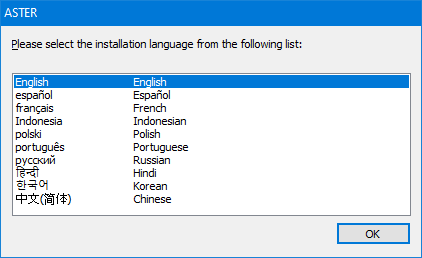
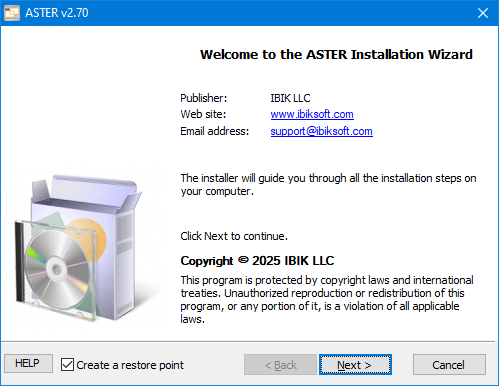


3. To continue the installation, select a folder, check the required “Configuring Windows settings” checkbox, and click “Install.”
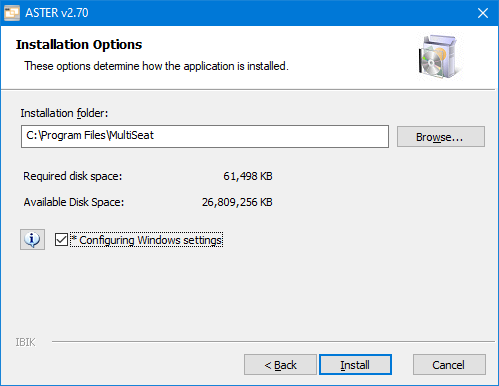
Please note the following changes that will be made to your system during the installation process:
Important system settings:
- disabling the Windows “Memory Integrity” function, which is incompatible with ASTER;
- disabling Fast Boot mode;
- enable the recording of debugging information (small memory dump) in case of a system failure.
Performance and power settings:
- the “High Performance” power scheme is selected by default;
- prohibition of the following modes: monitor shutdown, sleep mode, and temporary power shutdown for USB devices;
- installation of the PowerSaver.scr screen saver, as the standard Windows mechanisms for turning off monitors often do not work correctly with ASTER.
Security settings:
- adding the folder with the installed ASTER to the Windows Defender exceptions;
- creating rules in Windows Firewall.
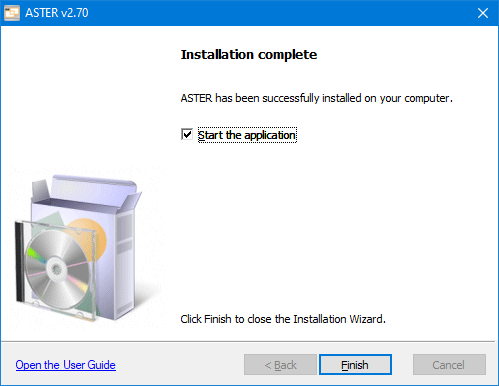
4. After the ASTER installation is complete, you can launch the ASTER application by checking the “Launch application” box and clicking the “Finish” button.
ASTER - this is a shortcut that will open the ASTER Control Panel
ASTER User Guide - this is a shortcut that will open the ASTER user manual to refer to when configuring ASTER.
EULA (End User License Agreement)– is the user's license agreement.
Uninstalling
The program can be removed from the PC through the “Uninstall a program” section of the Windows Control Panel.